Dictation and Voice Text Input Offline
How to dictate text by voice in VoxSpica: real-time recognition, hotkeys and window insertion (Windows), privacy and limitations.
VoxSpica allows you to dictate text by voice and get speech recognition in real time right on your computer — without cloud, account and subscription. Suitable for notes, drafts, messages and working with text where privacy and offline work are important.
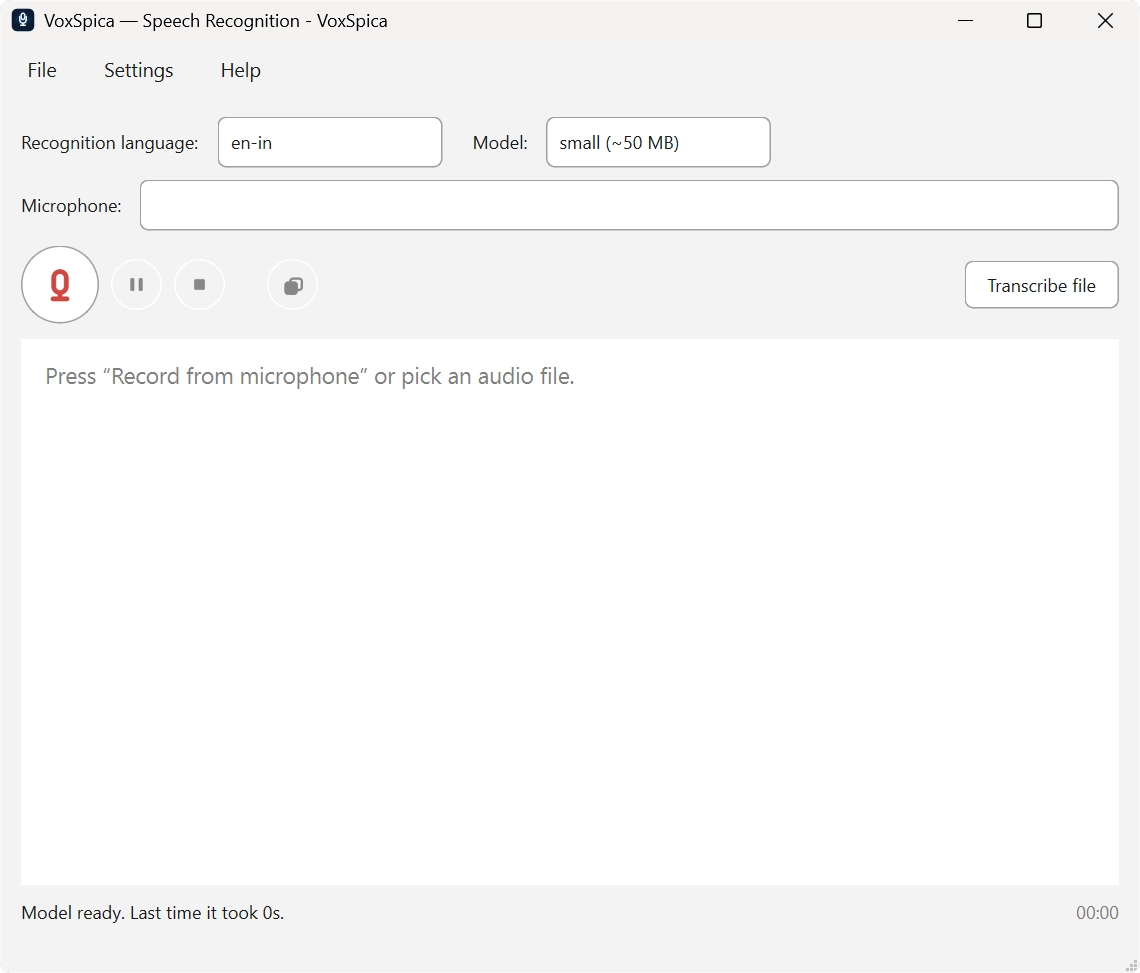
Short version: choose language and model, press record, speak — text appears as you speak. On Windows, text insertion into active window and global hotkeys are available.
Download VoxSpica · How VoxSpica Works · Platforms
Who voice input in VoxSpica is suitable for
- Suitable if you need offline voice text input on Windows or Linux, and recordings should not go to third-party services.
- Suitable for dictating notes, ideas, drafts and work texts with subsequent editing.
- Important to know: VOSK returns text without punctuation; VoxSpica adds basic heuristic post-processing (periods, capitalization), but commas are not added automatically. The result usually requires quick proofreading.
How real-time dictation works
- Choose recognition language and model (
small— faster,large— usually more accurate, but loads longer and requires more memory). - Choose microphone and start recording.
- Speak — the interface shows intermediate and final results (
partial/final), there is pause and stop. - Copy or save text, if necessary use recognition history.
Inserting Text into Active Window (Windows)
On Windows VoxSpica supports dictation directly into the desired program:
- Hotkeys (default):
Ctrl+Alt+D— start recording,Ctrl+Alt+S— stop (can be configured). - Insertion into active window: via menu/command (e.g.
Ctrl+Enter) and automatic/live insertion mode during recognition. - Text is inserted as plain text, without timestamps.
Hotkeys and insertion into another window work only on Windows. On Linux this scenario is unavailable (macOS not supported).
Tips for More Accurate Voice Input
- Use a quality microphone and speak at comfortable volume, without strong echo and background noise.
- For higher accuracy (if available for the language) try model
large; for quick notes on a weak PC —small. - Dictate in phrases and make pauses — then the final text is easier to edit.
- After dictation check names, terms, punctuation and formatting.
- Accuracy depends on language, accent, vocabulary and recording quality.
History, Export and Privacy
- Recognitions can be saved in local history (SQLite) with search, viewing and deletion of records.
- Timestamps and export are available for results (including
.txtwith timestamps and.srt— depending on scenario). - By default microphone audio is not saved (
save_audiodisabled) — this is a conscious choice in favor of privacy. - Processing is performed locally by VOSK engine on CPU; after model download internet is not needed for recognition.
CLI for Dictation
Command examples:
# List of available languages and models
VoxSpica.exe list

# List of microphones
VoxSpica.exe devices

# Dictation with microphone
VoxSpica.exe mic --lang ru --size small
(In ready builds the executable file/command name may differ depending on platform and installation method.)
Limitations
- No diarization (speaker separation) and neural punctuation; commas not added automatically.
- Automatic language detection for microphone unavailable (automatic detection works only for files).
- Windows-only: global hotkeys and insertion into active window.
- GPU not used; quality depends on chosen model, language and recording conditions.
FAQ
Can VoxSpica be used as voice text input on computer?
Yes. VoxSpica recognizes speech in real time and allows copying/saving text, and on Windows — inserting it into active window.
Is internet needed for dictation?
For recognition — no, after installation and model download. Internet may be needed for downloading installer/models and optional update checking.
Why are there no commas in text?
VOSK does not output full punctuation; VoxSpica applies heuristic post-processing (periods, capitalization), without automatic comma placement.
Does dictation work on Linux?
Yes, dictation with microphone and transcription are available on supported Linux systems. But global hotkeys and insertion into another window are implemented only for Windows.
Voice Text Input on Computer
This scenario is called differently: "program for text dictation", "text dictation by voice", "text dictation in Russian". In all cases it's the same thing: you speak into a microphone, and text appears in active window or is saved in the application.
Text dictation in Russian without internet
For Russian language use the corresponding VOSK model — Russian text dictation works offline after model download. This is convenient when voice text input on computer is needed without cloud service and account.
See also
- Transcribe audio to text offline — if you need to translate a ready recording into text
- Platforms and system requirements
- Privacy and offline work
- Supported languages
- Download VoxSpica · FAQ · Documentation