Transcribe audio to text offline
How to transcribe audio files in VoxSpica locally: supported formats, models, steps, CLI, history and limitations.
VoxSpica — a program for translating audio to text. Translating audio to text (also known as audio transcription) is performed locally based on the VOSK engine: without uploading files to the cloud, without an account and without a subscription. This is convenient when you need to transcribe an interview, lecture, meeting, note or voice recording and preserve privacy.
Short version: open the audio file, choose the language and recognition model, get the text and, if necessary, save the result or find it in history.
Translating Audio to Text: How Audio Transcription Works
It's the same operation: VoxSpica locally recognizes speech in the audio file and creates text. Below — supported formats, model selection and step-by-step instructions. The result can be copied, saved and found in the local history.
Download VoxSpica · How VoxSpica works · Documentation
Who audio transcription in VoxSpica is suitable for
- Suitable if you need offline transcription of audio files on Windows or Linux, confidentiality is important and working without internet (after downloading the model).
- Suitable for notes, interviews, lectures, meetings and other recordings where you can wait for processing on your computer.
- Does not replace online collaboration services in the browser and cloud scenarios "upload link — get result". VoxSpica is a desktop application with local processing.
Supported audio formats
| Format | Support | Note |
|---|---|---|
| WAV (16 kHz, mono, int16) | Natively | Recommended for best quality and simplicity |
| MP3 | Via FFmpeg | Requires installed FFmpeg |
| M4A | Via FFmpeg | Requires installed FFmpeg |
| OGG | Via FFmpeg | Requires installed FFmpeg |
If MP3/M4A/OGG don't open, install FFmpeg (for example, in Windows:
winget install Gyan.FFmpeg) and check that it's available in the system.
How to transcribe an audio file: step by step
1. Launch VoxSpica and choose language and model
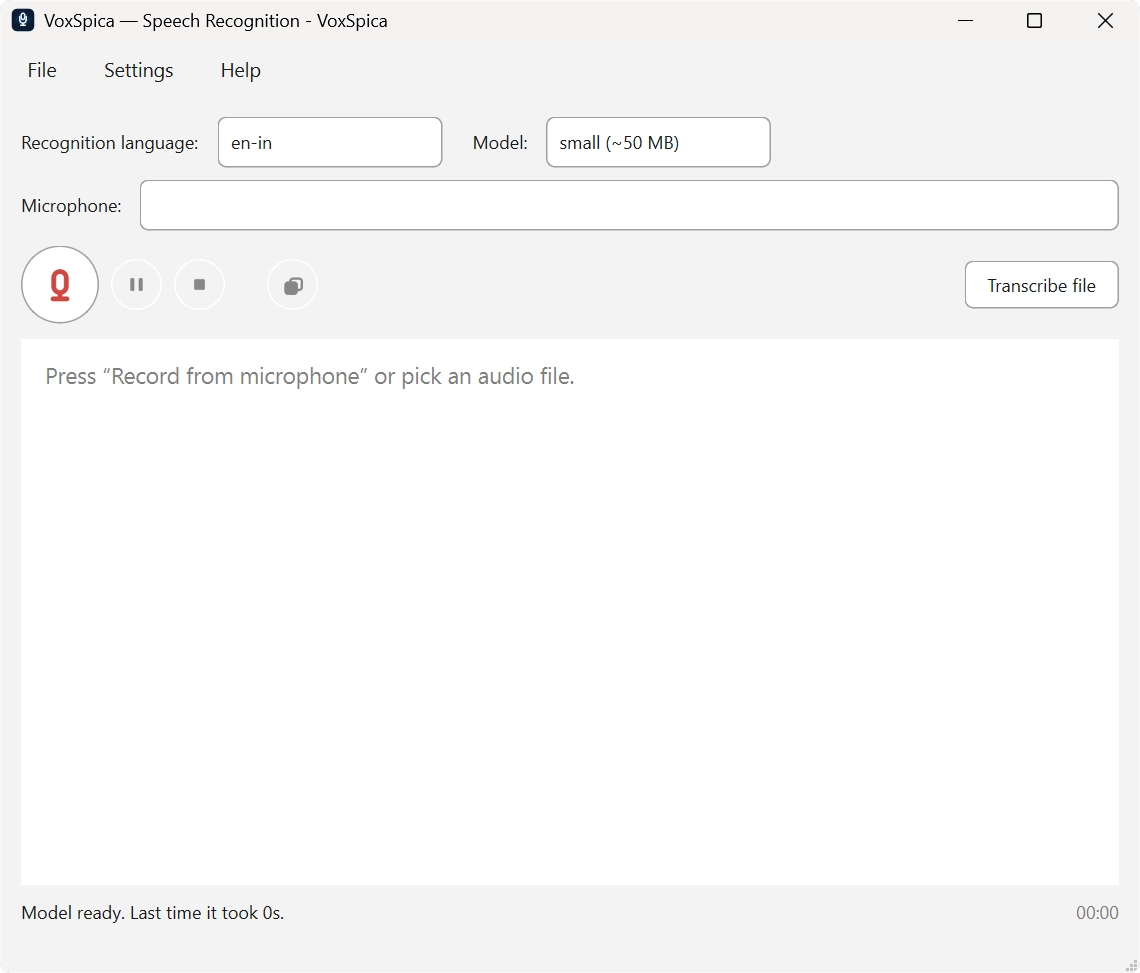
Open the application (Windows — Start menu, Linux — applications menu). Choose audio language and model size: small — faster and lighter for the computer, large — usually more accurate, but requires more memory and loading time.
2. Open the audio file
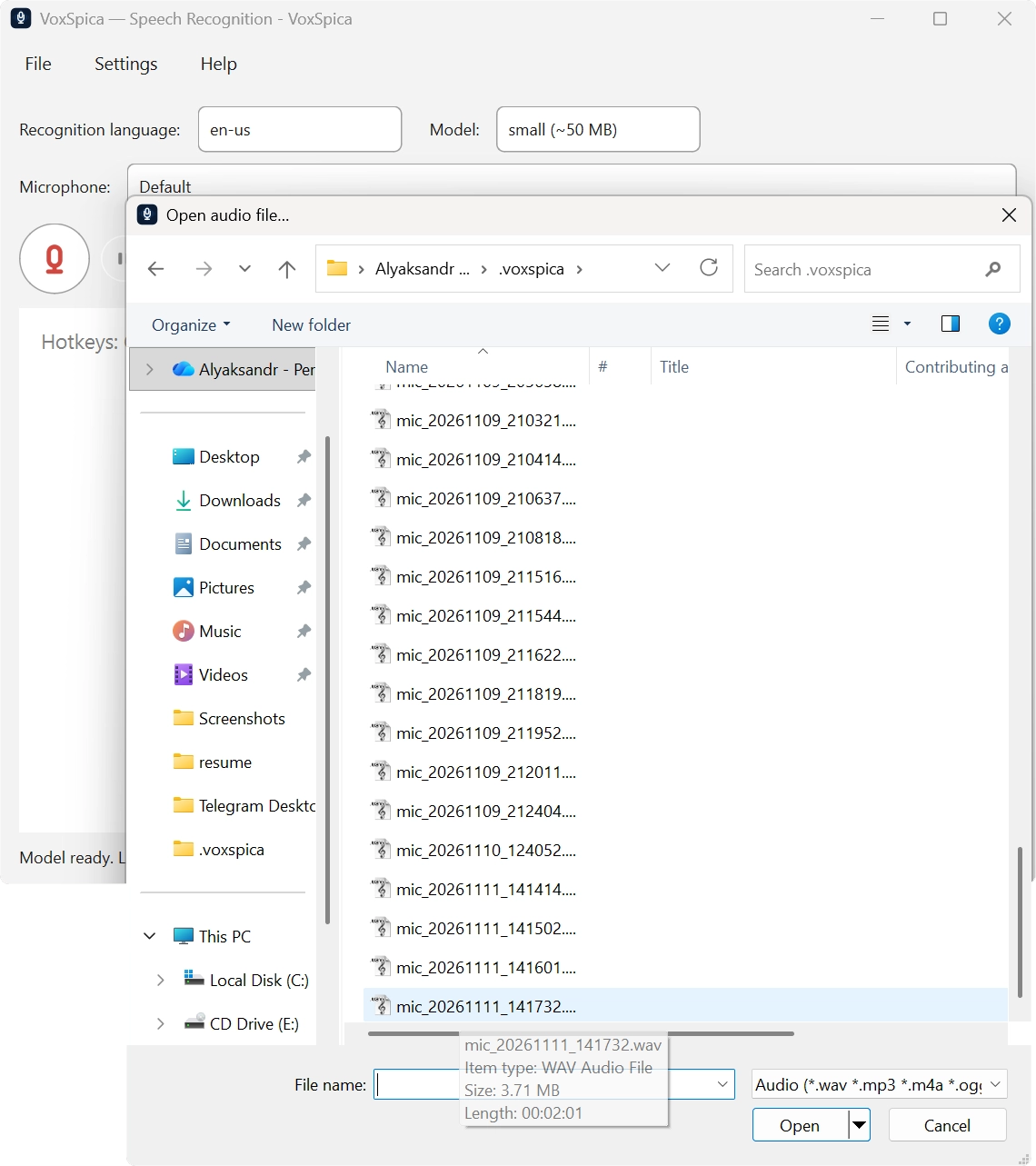
Click "Open file" and select the recording (WAV, MP3, M4A or OGG).
3. Wait for transcription to complete
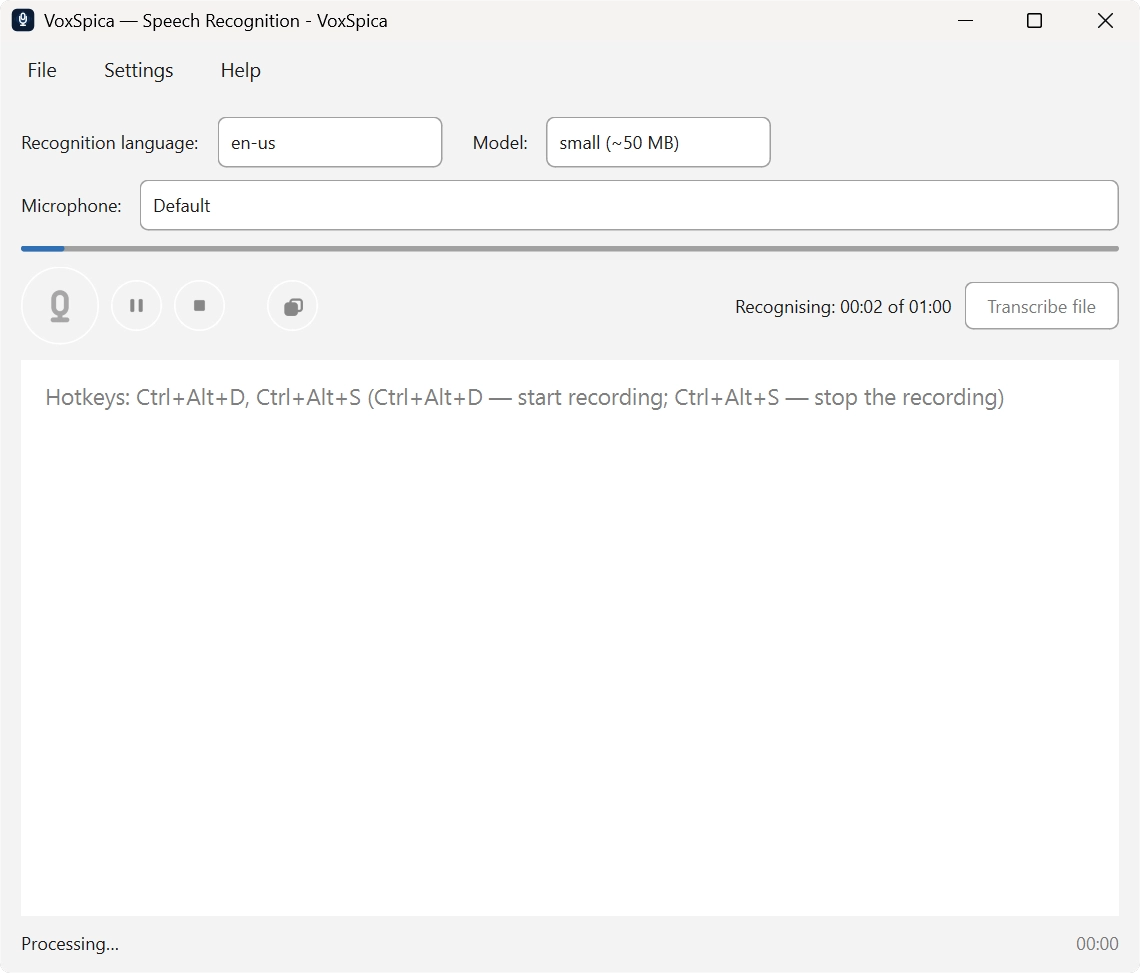
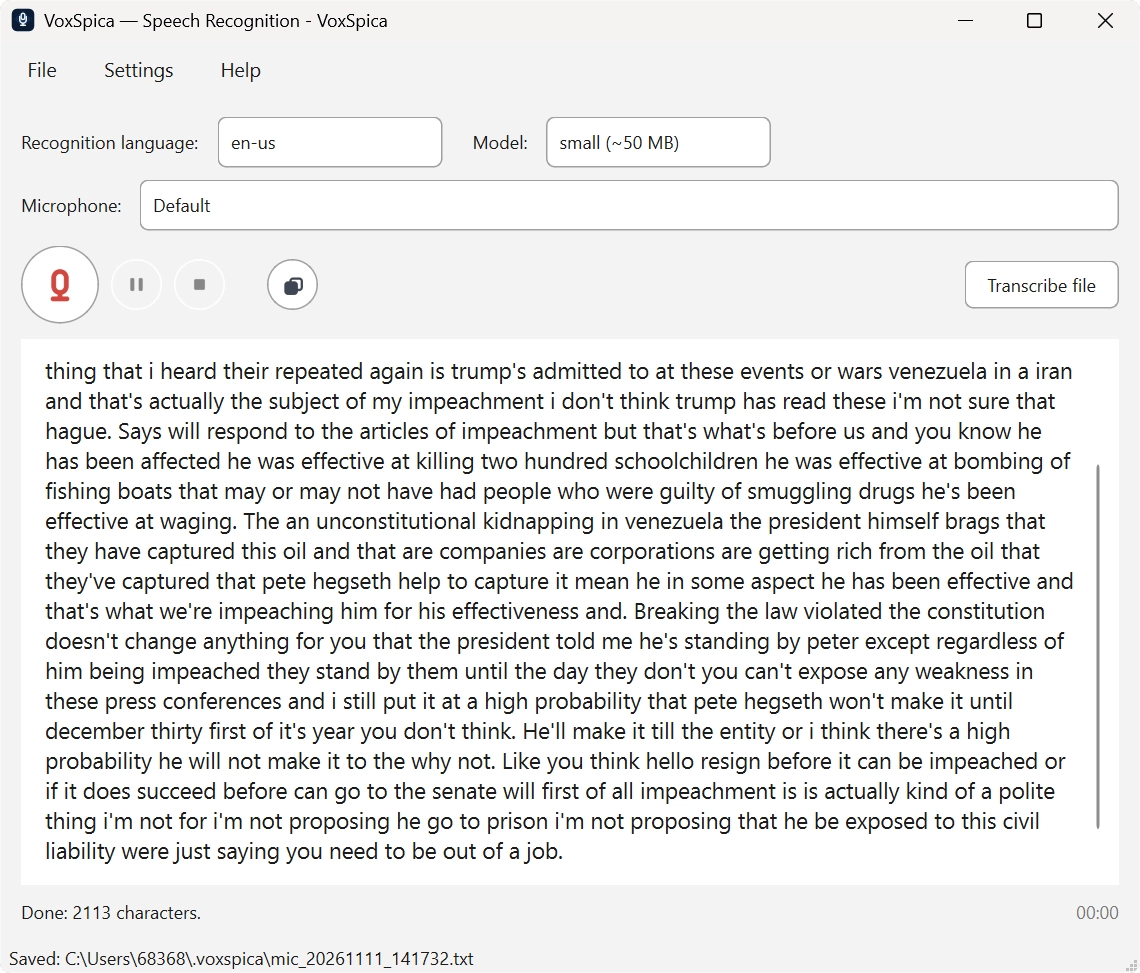
Text appears in the window as processing progresses, progress can be tracked in real time.
4. Save or copy the result
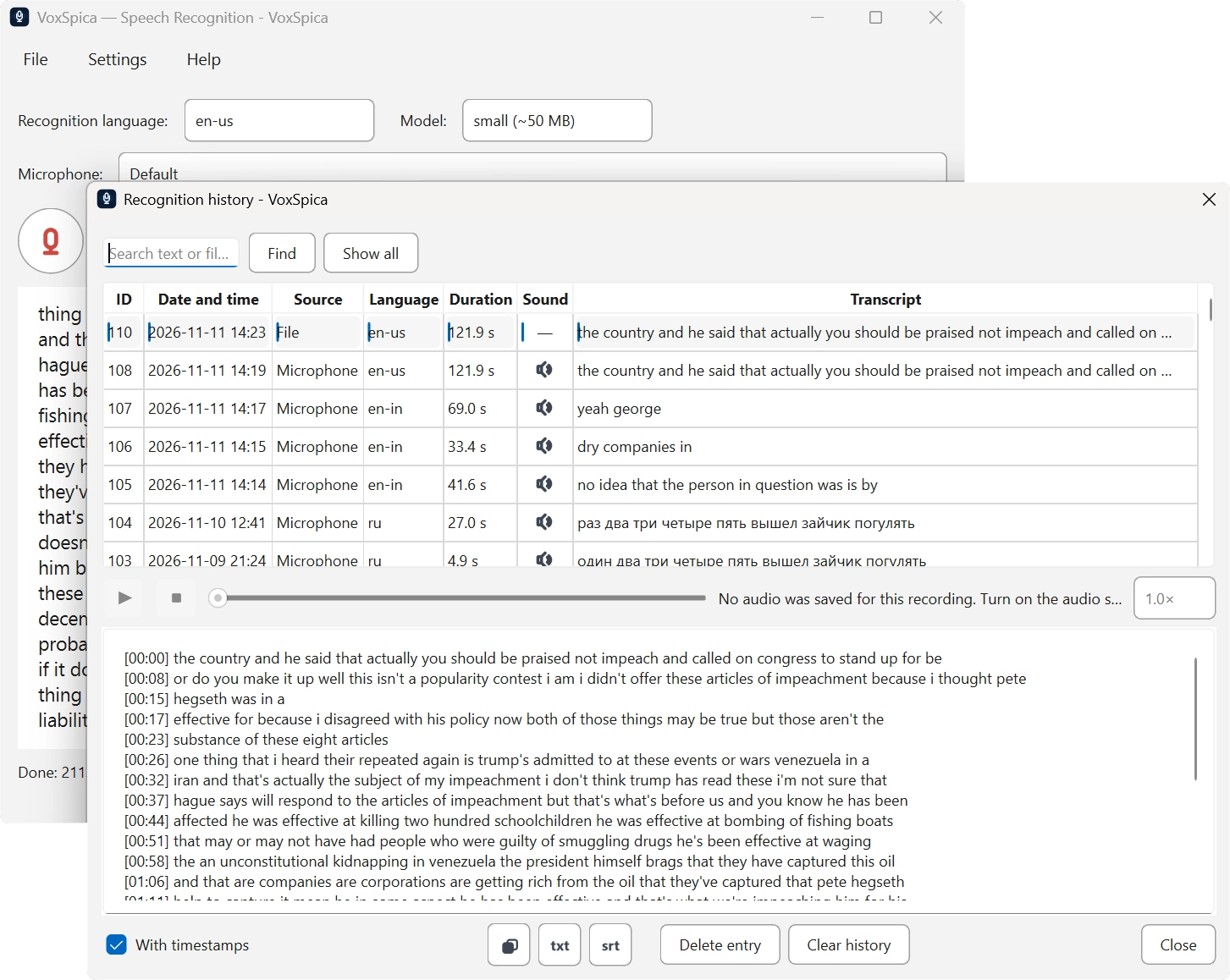
The finished text can be copied to the clipboard or saved. VoxSpica also has recognition history.
Recognition history and export
VoxSpica stores recognition history locally (SQLite) — with search capability. For recordings, timestamps are available, as well as export (including .txt with timestamps and .srt for subtitles, depending on scenario/interface).
Recognition models: small and large
| Model | When to choose | RAM (approx.) | Loading (approx.) | Disk (approx.) |
|---|---|---|---|---|
| small | Notes, short phrases, clean speech, weak PCs | ~0.3 GB | seconds | ~50 MB |
| large | Meetings, interviews, noisy recording, when accuracy matters | ~3–4 GB (several GB) | 30–90 s | ~1.8 GB |
Model size availability depends on the specific language. Models are downloaded separately and stored locally (usually in
~/.voxspica/models).
Recognition accuracy: what it depends on
- Language and model: for languages with large training data volumes (e.g. English, Russian, German, French, Spanish, Chinese) quality is usually higher; for languages with limited resources there may be more errors.
- Recording quality: noise, echo, quiet speech, overlapping voices and poor microphone reduce accuracy.
- Post-processing: VOSK outputs text without case and punctuation; VoxSpica applies heuristic post-processing (capitalization, periods) — commas are not automatically added.
- Automatic language detection: available only for files (not for microphone), works heuristically and may err on similar languages.
Transcription via command line (CLI)
CLI can be used for automation (one file per call). Examples:
# Transcribe one file
VoxSpica.exe file interview.wav

# Example of batch processing in a shell loop (one file per call)
for f in recordings/*.wav; do
  VoxSpica.exe file "$f" > "${f%.wav}.txt"
done
Other useful commands (depending on environment/build): VoxSpica.exe list (languages and models), VoxSpica.exe devices (microphones), VoxSpica.exe history --search "meeting".
Important limitations to know
- No batch processing "out of the box" in a single CLI call — files are processed one by one.
- No diarization (speaker separation) and neural punctuation.
- GPU is not used — recognition runs on CPU.
- Audio is processed locally; internet after model download is not required for recognition. The only network interaction described in the product is optional update checking.
FAQ
Can audio be transcribed to text for free and without internet?
Yes. VoxSpica works offline after installation and downloading the required model, without account and subscription. Internet may be needed for downloading the installer/models and (optionally) update checking.
What formats are supported: WAV, MP3, M4A, OGG?
WAV is supported natively. MP3, M4A and OGG are processed via FFmpeg (it needs to be installed separately).
Where is transcription history stored?
Locally on your computer in the SQLite database (~/.voxspica/history.db in the user profile). Data is not sent to the cloud.
Can subtitles or timestamps be obtained?
Timestamps and result export are supported (including .txt with timestamps and .srt) — capabilities depend on usage scenario and interface.
Is it suitable for transcribing interviews or lectures?
Yes, this is a typical scenario. For long and noisy recordings it's usually better to choose model large (if available for the language) and use a high-quality source recording.
What does "translate audio to text" mean?
Translating audio to text means obtaining written text from spoken speech in a file. In VoxSpica this is done locally: the file is not uploaded to the cloud, but recognized on your computer.
How does audio transcription differ from transcription?
Essentially it's the same thing. The word "transcription" is more often used for long recordings (interviews, lectures, meetings), "transcription" — for everyday tasks. The mechanism in VoxSpica is the same.
How the audio-to-text translation task is called
Formulations "audio recognition to text", "audio translation to text", "voice transcription to text", "audio file to text" and "audio to text in Russian" describe one and the same operation — obtaining written text from spoken speech. VoxSpica performs it locally, based on VOSK, without uploading the file to the cloud.
Program for audio-to-text transcription — what to choose?
If you need a program for audio-to-text translation that works without internet, VoxSpica is suitable. Search options "audio-to-text translation program" and "program for audio transcription" usually mean the same thing: a desktop application that turns a recording into text on your computer.
See also
- Dictation and voice text input — when you need to type text by voice in real time
- How VoxSpica works — general operating principle and scenarios
- Supported languages — recognition and interface languages
- Platforms and system requirements — Windows, Linux, dependencies
- Privacy and offline work — how data is processed
- Download VoxSpica
- FAQ and Documentation