How to Transcribe an Interview Offline: Step-by-Step Guide
Step-by-step interview transcription scenario in VoxSpica: recording preparation, model selection, transcription, timestamp work and text post-processing.
Interview transcription is one of the most frequent tasks for transcription. In VoxSpica it can be performed offline on your computer: without uploading the recording to the cloud and without an account. Below is a practical scenario from audio preparation to finished text.
Short version: record quality audio, choose suitable language and model (often large), perform transcription in VoxSpica, then proofread and format the text.
Audio Transcription to Text · Download VoxSpica · How to Improve Quality
1. Prepare the Recording
Source audio quality strongly affects the result:
- Microphone and placement: if possible, use an external microphone, place it closer to the speaker.
- Noise and echo: record in a quiet room, minimize background noise and reverberation.
- Format: WAV — the simplest option for VoxSpica. MP3/M4A/OGG are supported via FFmpeg.
- Speech: clear articulation and absence of simultaneous speech by several people help recognition (diarization is not supported in VoxSpica).
2. Prepare VoxSpica
- Install VoxSpica and download the model for the interview language.
- For complex, long or noisy recordings it's usually better to choose
large(if available for language and PC resources allow). - If using MP3/M4A/OGG, make sure FFmpeg is installed.
Supported Languages · Platforms and Requirements
3. Perform Transcription
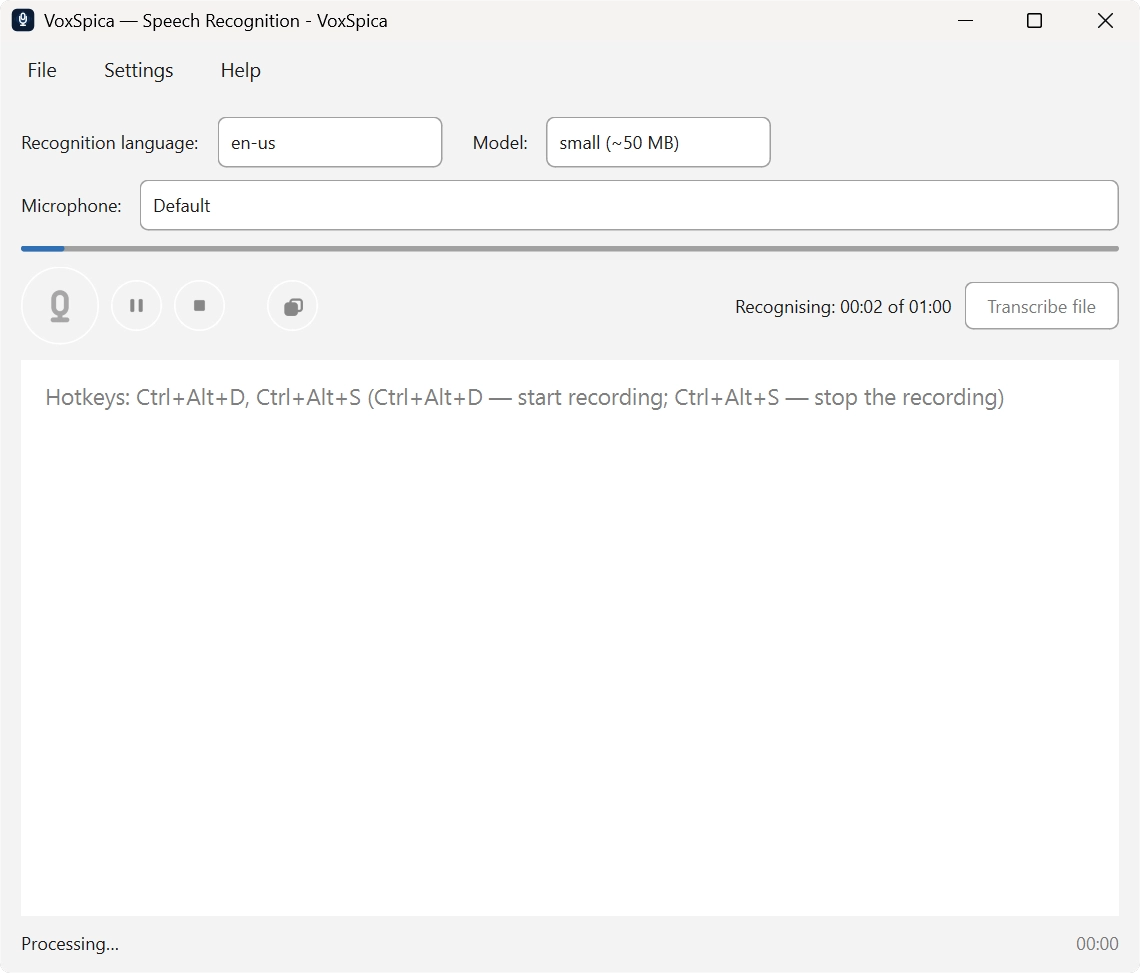
- Open the audio file in VoxSpica.
- Choose language and model.
- Wait for processing completion (text appears as transcription progresses).
- Save the result or copy the text.
4. Working with the Result
- History: recognitions are saved locally (SQLite) with search.
- Timestamps and Export: timestamps and result export are available (including
.txtwith timestamps and.srt, depending on scenario/interface). - Post-processing: be sure to proofread the text — fix names, terms, paragraph breaks and punctuation. In VoxSpica heuristic punctuation is used (periods, capitalization), commas are not added automatically.
5. Tips for Interviews and Long Recordings
- Split long sessions into logical parts (if convenient in your process) to make result editing easier.
- With several speakers, mark in advance in notes who speaks (there is no automatic speaker separation).
- For terms and names, prepare a draft glossary in advance — this will speed up proofreading.
- If quality is low, try improving the source file or re-processing with
largemodel.
Checklist
- Audio recorded clearly, minimal noise
- Correct language chosen (and
largemodel if needed) - FFmpeg installed for MP3/M4A/OGG
- Transcript saved/exported
- Proofreading done (punctuation, names, terms, paragraphs)
Limitations
- No diarization (automatic speaker separation).
- No neural punctuation and automatic commas.
- Quality depends on language, model, recording and acoustic conditions.
- CLI processes one file per call.
FAQ
Which model is better to choose for interview transcription?
Often large (if available for language), especially for long and noisy recordings. For quick drafts you can start with small.
Can an interview be transcribed without internet?
Yes, after installing VoxSpica and downloading the model recognition works offline.
Will speaker lines be automatically separated?
No, automatic diarization is not supported in VoxSpica — speaker labeling needs to be done manually during editing.