MP3 to Text Offline: How to Transcribe an Audio Recording on Computer
How to translate MP3 (and WAV, M4A, OGG) to text offline in VoxSpica: FFmpeg setup, model selection, step-by-step transcription and quality tips.
If you need to translate MP3 to text without uploading the file to the internet, VoxSpica allows you to do this locally on your computer. This same application covers the task "audio to text translation" in general: offline audio file transcription (VOSK, CPU), transcription of interviews, lectures, meetings and personal recordings.
Short version: install VoxSpica and the language model, if necessary install FFmpeg (for MP3/M4A/OGG), open the file — and save the finished text.
Main guide: audio transcription to text · Download VoxSpica · Documentation
Supported Formats
| Format | How it works in VoxSpica | What's needed |
|---|---|---|
| WAV (16 kHz, mono, int16) | Natively | Nothing additional |
| MP3 | Via FFmpeg | Installed FFmpeg |
| M4A | Via FFmpeg | Installed FFmpeg |
| OGG | Via FFmpeg | Installed FFmpeg |
For the best and most predictable result it's convenient to use WAV. For MP3/M4A/OGG make sure FFmpeg is installed and available in the system.
What to Prepare Before MP3 Transcription
- VoxSpica for Windows or Linux. Download
- Recognition model for the needed language:
small(faster) orlarge(usually more accurate). - FFmpeg for MP3/M4A/OGG (not included in VoxSpica package). Example for Windows:
winget install Gyan.FFmpeg. - Enough disk space and memory (especially for
largemodels).
How to Translate MP3 to Text: Step by Step
- Launch VoxSpica and choose audio language and model size.
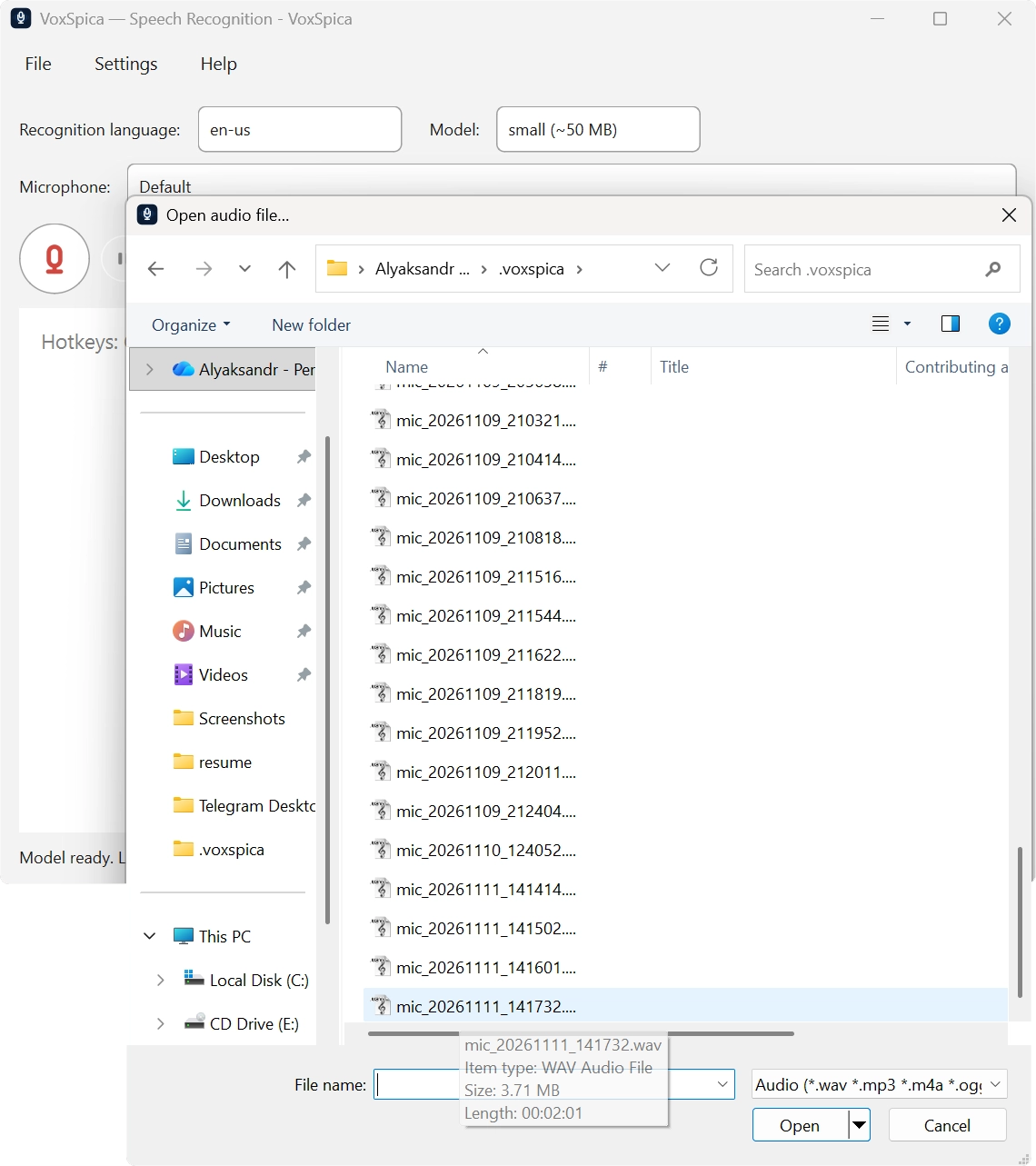
- Open the audio file (MP3/WAV/M4A/OGG).
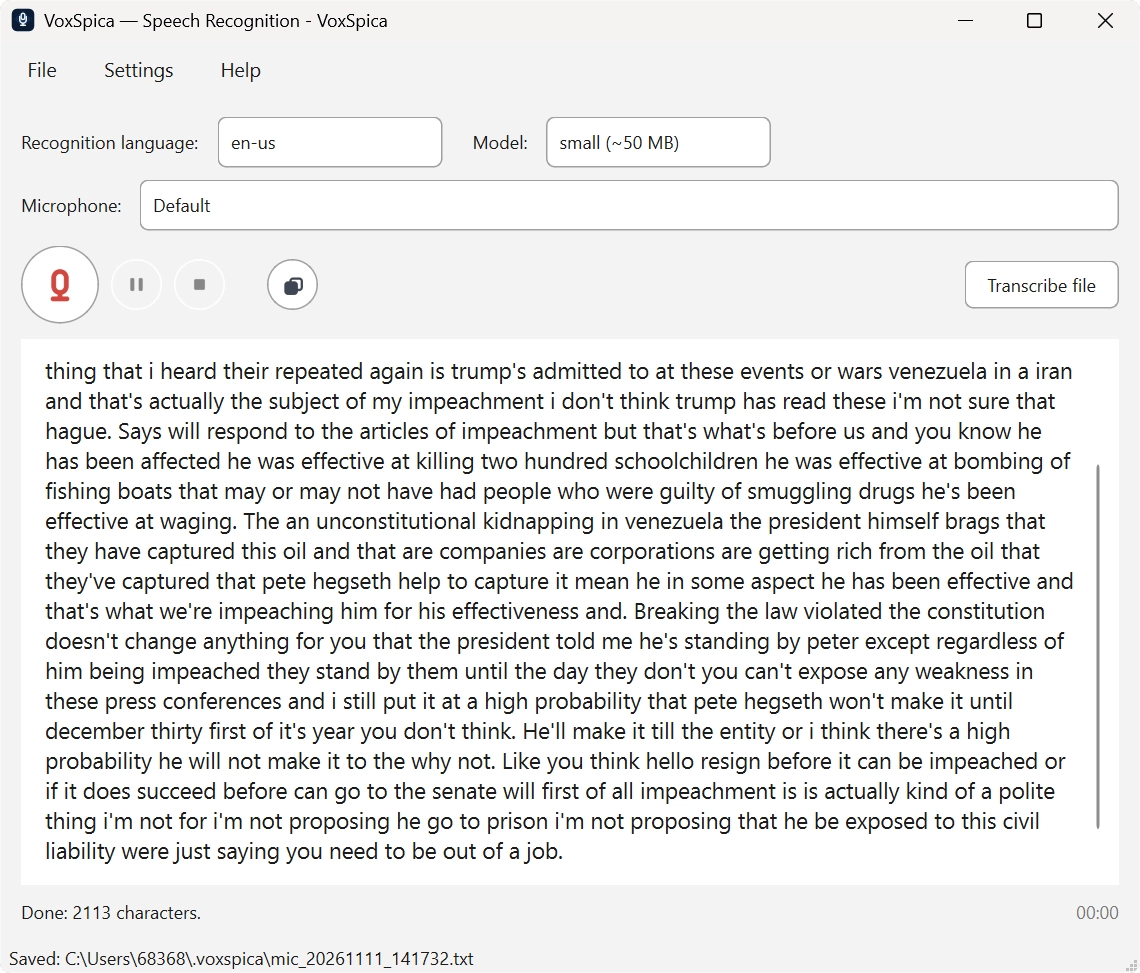
- Wait for processing — text appears as transcription progresses.
- Copy or save the result; if necessary use recognition history.
Which Model to Choose: small or large
| Model | Suitable for | RAM (approx.) | Loading |
|---|---|---|---|
| small | Quick tasks, short and clean recordings, weak PCs | ~0.3 GB | seconds |
| large | Interviews, meetings, noisy/complex recordings (if available for language) | ~3–4 GB | 30–90 s |
Model size availability depends on language. See supported languages.
History, Timestamps and Export
- Recognition history is stored locally in SQLite and supports search.
- For results timestamps and export are available (including
.txtwith timestamps and.srt, depending on scenario/interface). - Processing is performed locally; by default microphone audio is not saved.
Tips for Better Quality
- Use a high-quality source recording (less noise and echo, clear speech).
- Choose recognition language correctly (for files automatic language detection is available, but it's heuristic).
- For long and complex recordings try the
largemodel. - After transcription proofread the text: punctuation in VoxSpica is heuristic (periods/capitalization), commas are not added automatically.
Limitations
- MP3/M4A/OGG require installed FFmpeg.
- No built-in batch file processing in a single CLI call (files are processed one by one).
- No diarization (speaker separation) and neural punctuation.
- Accuracy depends on language, model, audio quality and recording conditions.
FAQ
Can MP3 be translated to text for free and offline?
Yes. VoxSpica works locally after installation and model download, without account and subscription.
Is internet needed for MP3 transcription?
For recognition itself — no. Internet may be needed for downloading installer/models and optional update checking.
What to do if MP3 doesn't open?
Install FFmpeg and check that it's available in the system. For checking you can use a WAV file.
Can a long interview be transcribed?
Yes, this is a typical scenario. For complex recordings usually large model is better (if available for language).
MP3 Transcription to Text
If you need to convert MP3 to text or perform MP3 transcription to text, VoxSpica does this locally: the file is opened in the application and the result is saved in history. For MP3/M4A/OGG installed FFmpeg is needed; WAV is recognized natively.