Voice Input in Windows 10/11 Without Internet: How to Dictate Text Offline
How to set up offline voice text input in Windows 10/11 with VoxSpica: dictation, hotkeys, insertion into active window and quality tips.
If you need voice text input in Windows 10 or Windows 11 without internet, VoxSpica allows you to dictate offline directly on your computer. Speech recognition is performed locally (VOSK engine, CPU), without sending audio to cloud and without account.
Short version: install VoxSpica, choose language and model, start dictation with microphone — and if necessary insert text into active window using hotkeys (in Windows).
Download VoxSpica · Dictation and Voice Input · Platforms
Who Offline Voice Text Input in Windows Is Suitable For
- Suitable, if you want to dictate notes, drafts or messages on PC and preserve privacy (audio is processed locally).
- Suitable, if voice text input without permanent internet connection is needed (after installation and model download).
- Important: this is a desktop application, not a built-in system function of Windows. Hotkeys and insertion into active window are implemented in VoxSpica for Windows.
Preparation: What's Needed
- Windows 10/11 (x64) and installed VoxSpica. Download
- Microphone, correctly selected in system/application.
- Recognition model for needed language (
small— faster,large— usually more accurate, but requires more resources). Models are downloaded separately. - Internet is needed only for downloading installer/models (and optional update checking), not for recognition itself.
How to Enable and Use Voice Input in VoxSpica (Windows)
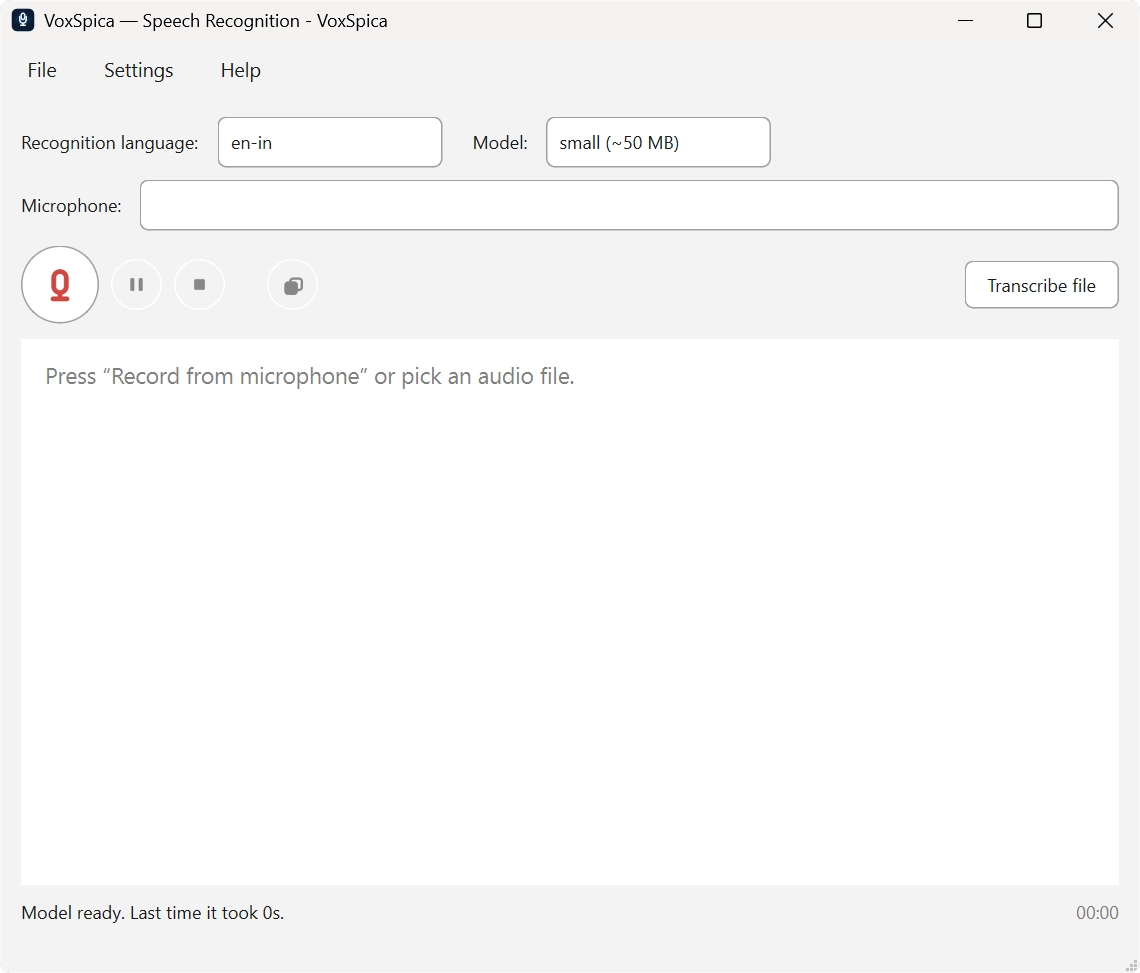
- Launch VoxSpica and choose recognition language and model.
- Choose microphone and press record.
- Speak — text appears in real time (intermediate and final results). Pause and stop are available.
- Insert or save text:
- copy/save result in VoxSpica;
- use insertion into active window (in Windows), including live insertion during recognition;
- default hotkeys:
Ctrl+Alt+D— start recording,Ctrl+Alt+S— stop (can be configured).
Text is inserted as plain text, without timestamps.
Tips for More Accurate Voice Input
- Speak clearly, at comfortable volume, with minimal background noise and echo.
- For complex recordings try
largemodel (if available for language and PC resources allow). - Make pauses between phrases — then final text is easier to edit.
- Check names, terms and punctuation: VOSK does not add commas automatically, VoxSpica uses heuristic post-processing (periods, capitalization).
Typical Problems
- Speech not recognized: check selected microphone, microphone access rights in Windows, signal level and language correctness.
- Works slowly or not enough memory: use
smallmodel. - Hotkeys don't work: make sure combination is not occupied by another program; hotkeys/insertion function is available only in Windows.
Limitations
- Hotkeys and insertion into active window — only Windows.
- Automatic language detection for microphone unavailable (for files — available heuristically).
- No diarization and neural punctuation; commas are not added automatically.
- Quality depends on language, model, microphone, noise and articulation.
FAQ
Can voice input be used in Windows 10/11 without internet?
Yes, VoxSpica recognizes speech locally after installation and model download.
Does text insertion into Word/browser/other applications work?
In Windows text insertion into active window is supported (including live insertion). Specific behavior depends on target application.
How is this different from cloud dictation?
Audio is processed on your computer, without uploading to cloud and without account — this improves privacy and allows offline work.
Voice Text Input in Windows 10 and Other Formulations
Queries "voice text input Windows 10" and "voice text input Windows 10 in Russian" describe one and the same scenario. It's also called "voice input for Windows" or "speech recognition Windows" — in all cases it's local dictation without cloud.
Dictating Text into Word and Other Applications
Dictating text into Word works through insertion into active window: text appears where cursor is — in document, email or browser. For this global Windows hotkeys are needed.