Transcription of Lectures and Meetings Offline: How to Get Clear Text
Practical guide to offline transcription of lectures and meetings in VoxSpica: recording preparation, model selection, timestamps/history work and post-processing.
Lectures, webinars and work meetings often need to be converted to text — for outlines, protocols, material search or further work with content. In VoxSpica this can be done offline: speech recognition is performed locally (VOSK engine, CPU), without uploading the recording to cloud.
Short version: prepare a quality audio recording, choose language and suitable model (small or large), perform transcription in VoxSpica, then use history/timestamps/export and edit the final text.
Download VoxSpica · Audio Transcription · MP3 to Text Offline
When Offline Transcription is Particularly Useful
- Confidentiality: meeting and internal discussion recordings are processed locally.
- Autonomy: no permanent internet needed for recognition itself (after installation and model download).
- Result control: text, history and export remain with the user (
~/.voxspica, SQLite for history).
1. Audio Preparation
Input recording quality is critical for long materials:
- Format: WAV (16 kHz, mono, int16) is supported natively. MP3/M4A/OGG can be transcribed via FFmpeg (must be installed in system).
- Signal: the less noise, echo and speech overlap, the better the result. If possible, use recording with a closely placed microphone.
- Recording structure: for lectures and meetings it's useful to fix topics/timing in advance — this will speed up post-processing (there is no automatic speaker separation in VoxSpica).
2. Language and Model Selection
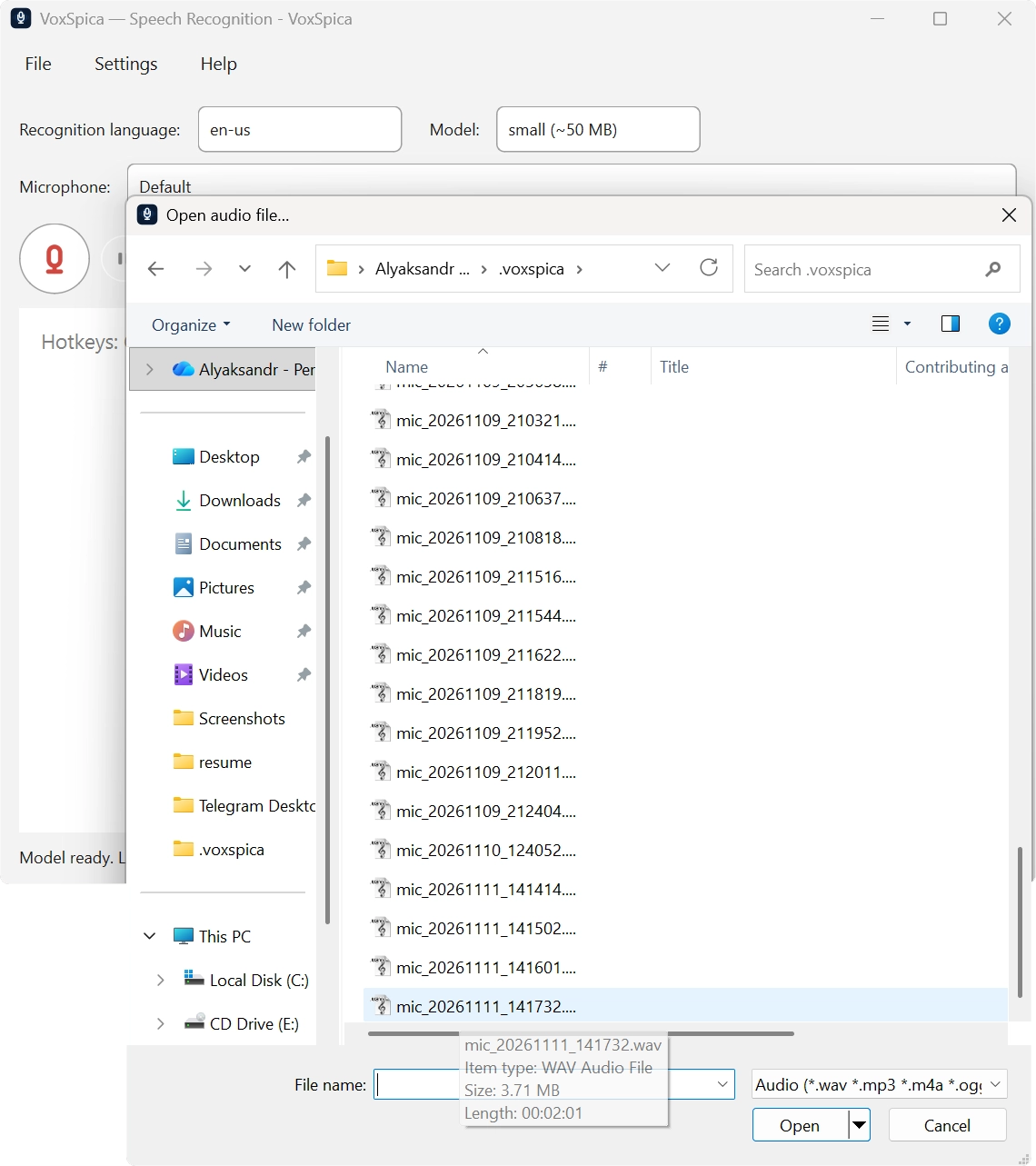
- Language: specify speech language manually. For files automatic language detection is available, but it's heuristic; for important recordings it's better to choose language explicitly.
- Model:
small— faster and more memory-efficient, suitable for drafts and clean recordings;large— usually more accurate for complex/long recordings, but requires more RAM and loading time (availability depends on language).
More details on models and availability by language: VOSK in VoxSpica, Supported Languages.
3. Transcription in VoxSpica
- Install VoxSpica and download model for needed language. Download
- Open lecture or meeting audio file.
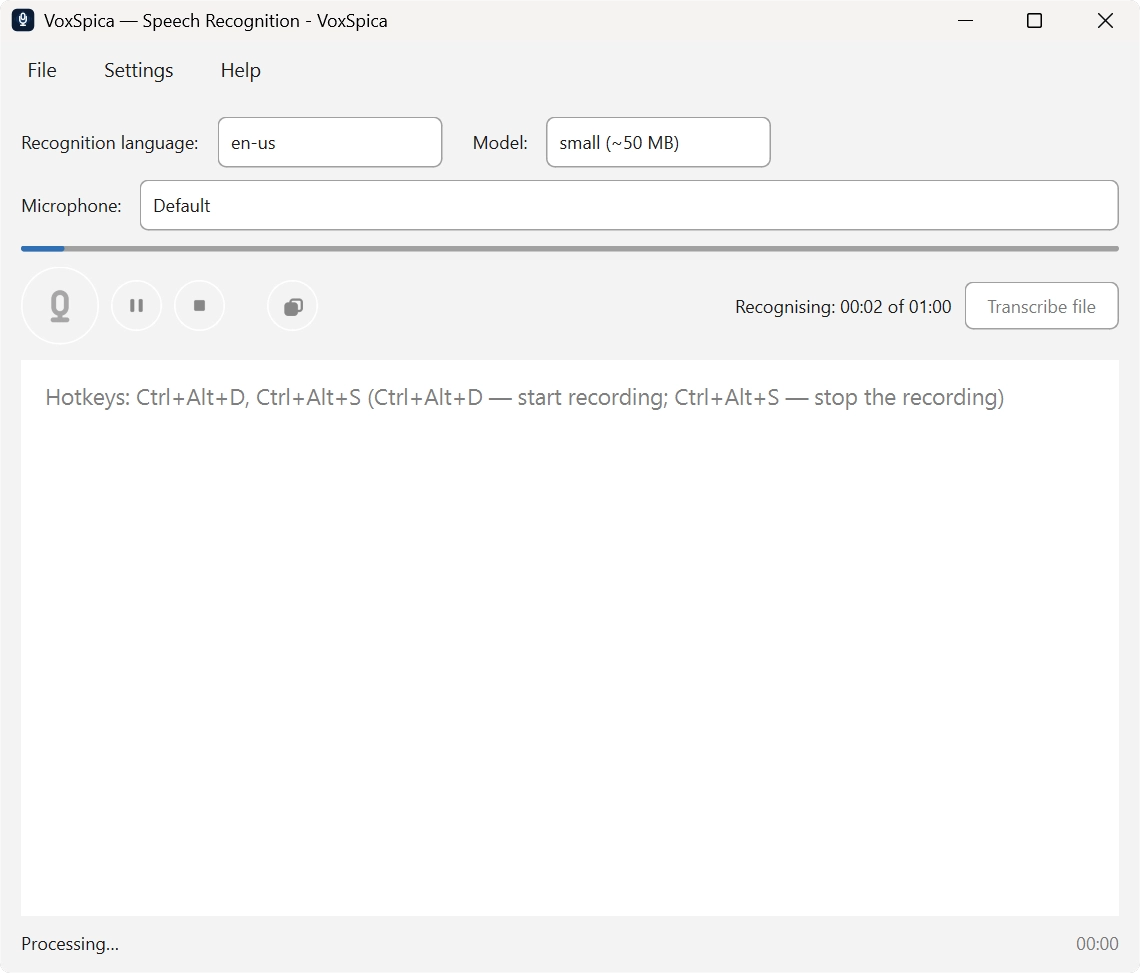
- Choose language and model size, start recognition.
- Wait for completion — text is formed as processing progresses.
4. Working with Result: Timestamps, History, Export
In VoxSpica (according to confirmed product capabilities):
- Recognition history is stored locally (SQLite) and supports search.
- For results timestamps and export are available (including
.txtwith timestamps and.srt— depending on scenario/interface). - Audio processing is performed locally; by default microphone audio is not saved.
This is convenient for navigating long recordings: you can match text fragments with time in the source audio.
5. Text Post-processing
Automatic transcription is a draft that almost always requires editing:
- Split text into paragraphs and thematic blocks;
- Fix names, terms, abbreviations and numbers;
- Add punctuation manually: in VoxSpica heuristic post-processing is used (periods, capitalization), commas are not added automatically;
- With several participants, manually label replicas/speakers (diarization is not supported).
Important Limitations to Consider
- No diarization (automatic speaker separation) and neural punctuation.
- Accuracy depends on language, model, recording quality, noise, accent and speech overlap.
- CLI processes one file per call (no built-in batch processing in one call).
- GPU acceleration is not used (work on CPU).
FAQ
Which model is better to choose for a lecture or meeting?
For long and complex recordings large is often preferable (if available for language and PC resources allow). For quick drafts or on weak PC — small.
Can I get timestamps and subtitles?
In VoxSpica timestamps and result export are supported, including formats with timestamps (e.g. .txt with timestamps and .srt) depending on scenario/interface.
Is transcription performed in cloud?
No, speech recognition in VoxSpica works offline on your device (after installation and model download).
See also
- How to Transcribe an Interview Offline
- How to Improve Speech Recognition Quality
- Timestamps and Transcript Export
- Audio Transcription to Text
- Privacy and Offline Work
Sources (primary sources)
- VOSK (speech recognition engine, offline, models): https://alphacephei.com/vosk/
- VOSK models (sizes/characteristics): https://alphacephei.com/vosk/models
- FFmpeg (multimedia processing, used for MP3/M4A/OGG): https://ffmpeg.org/
- VoxSpica capabilities and limitations: VOSK in VoxSpica, Audio Transcription, Platforms, Documentation